Private browser media converter

Convert images, videos, PDFs and HTML without uploading your files

WebMedia Optimizer by Nomad Compass runs the conversion work in your browser with the File API, Canvas, PDF.js and FFmpeg.wasm. Your images, videos, PDF documents and pasted HTML stay on your device while the browser creates new image files, PDFs, flattened PDFs and video exports locally.

Local processing protects private files

Client-side conversion is useful for personal documents, work media, invoices, screenshots and exports that should not be sent to an unknown server. The app still downloads open-source libraries from CDNs, but selected files are read and processed inside the browser session.

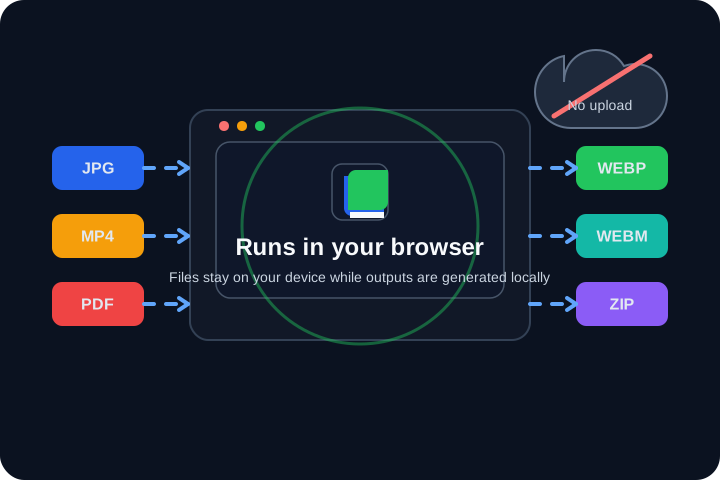
WebMedia Optimizer by Nomad Compass local browser conversion diagram showing JPG, MP4 and PDF files turned into WebP, WebM and ZIP downloads without cloud upload.

Modern image formats for the web

WebP is a strong default for smaller web images. AVIF can make files even smaller in browsers that support it. JPEG remains practical for photos and broad compatibility, while PNG is best for crisp graphics, transparency and lossless output.

Royalty-free WebM video options

WebM with VP9 is a reliable royalty-free choice for modern browsers and usually encodes faster than AV1. WebM with AV1 can deliver better compression at similar quality, especially for web delivery, but encoding takes more CPU time.

PDF pages become clean image exports

PDF pages are rendered in the browser and exported as separate image files. Choose all pages, a page range, or specific pages, then download a ZIP archive when the PDF produces multiple image files.

HTML and URL pages can become browser-style PDFs

The secondary HTML to PDF tool captures pasted HTML, local HTML files, and CORS-enabled URLs as they render in a browser viewport. Export to standard A4 pages or one long PDF when the full page should stay continuous instead of being split for printing.

Metadata inspection helps protect privacy

File metadata are hidden details such as camera make and model, GPS location, capture time, author names, editing software and document properties. They are useful for organizing files, but they can expose personal or workflow information when you share photos, screenshots, PDFs or client deliverables. The app can inspect metadata locally in the browser, remove it from converted files by default, and in supported workflows let you edit selected fields before optionally embedding them back into the export.

Image-based PDFs help finalize documents

You can place images inside one-page PDFs or flatten existing PDFs into image-based PDFs. This is useful for receipts, scans, finalized forms, signed pages, invoices, hand-marked paperwork, and visually redacted documents that should not keep a selectable text layer.

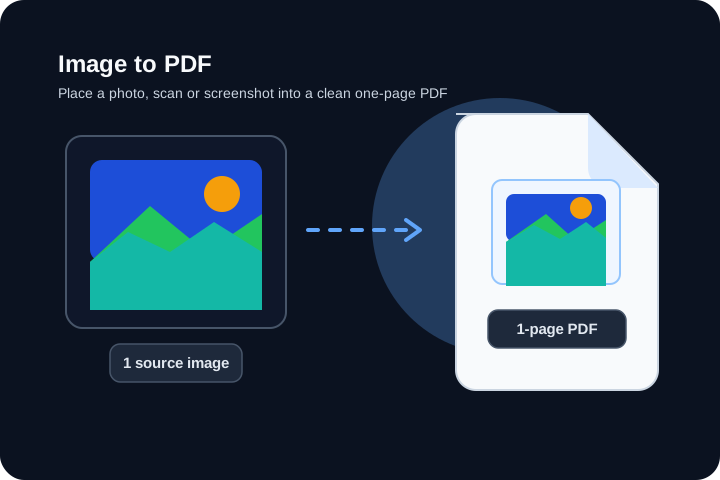
WebMedia Optimizer by Nomad Compass image to PDF diagram showing a single image converted into a one-page PDF document.
Image to PDF works well for scans, receipts, signatures, screenshots and document attachments.
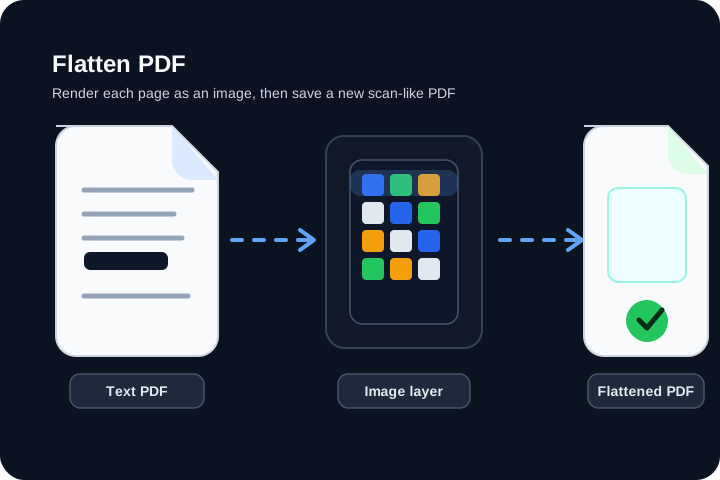
WebMedia Optimizer by Nomad Compass flatten PDF diagram showing a text PDF rendered into image layers and saved as a flattened scan-like PDF.
Flatten PDF creates a scan-like file that drops the original selectable text layer.

How It Works

1. Add files: drop images, videos or PDFs into the browser.

2. Pick output: select WebP, AVIF, JPEG, PNG, PDF, MP4, WebM VP9, WebM AV1, or a flattened image-based PDF.

3. Convert locally: Canvas, PDF.js, jsPDF and FFmpeg.wasm process the files on the client device.

4. Download: save single files or collect batch results in a ZIP archive.

Format Guide

WebP: compact images for websites, previews and content libraries.

AVIF: high compression for modern browsers when maximum size reduction matters.

JPEG: photos and social sharing where universal support matters.

PNG: screenshots, UI assets, text-heavy images and transparency.

PDF: image-to-PDF exports for photos, scans, receipts, or document pages that should travel as PDF files.

MP4: broad compatibility for devices, editors and legacy platforms.

WebM VP9: royalty-free video with a good balance of speed, size and support.

WebM AV1: next-generation compression for smaller web video when encoding time is acceptable.

Metadata inspector: review hidden file details like EXIF, GPS, author and document info, then optionally edit supported fields before export.

Flattened PDF: useful when you want a scan-like PDF that no longer keeps selectable text from the original source.
Privacy and Conversion FAQ

Are files uploaded during conversion?

No. Selected files are opened by the browser and processed locally. The generated files are created from local Blob URLs and downloaded from the same browser session.

Why choose WebM VP9 or WebM AV1 instead of MP4?

WebM VP9 and WebM AV1 are royalty-free formats designed for efficient web video. VP9 is the practical default for many browser workflows. AV1 can produce smaller files, but it needs more encoding time.

Which image format should I use?

Use WebP for smaller website images, AVIF for stronger compression in supported browsers, JPEG for photos and compatibility, and PNG for lossless graphics, text-heavy screenshots or images that need transparency.

Can large files be converted in the browser?

Yes, but speed and stability depend on the device, available memory and browser WebAssembly performance. Large PDFs and long 4K videos can take longer on phones or low-power laptops.

What are file metadata and why remove them?

Metadata are hidden details stored inside files, such as camera model, capture date, GPS coordinates, author names, software identifiers, and document info. Removing them is useful when you share photos, screenshots, PDFs, or client files and do not want location, identity, or workflow details to travel with the exported file. In supported workflows, you can also edit selected metadata locally before choosing whether to put them back into the converted file.

Can any URL be converted to PDF?

Not from a frontend-only page. The URL to PDF tool works for same-origin or CORS-enabled pages. Browsers block normal web apps from reading and capturing arbitrary cross-origin websites, even when the user can visit those sites in a tab.

Why flatten a PDF into an image-based PDF?

Flattening renders each page as an image and writes those images into a new PDF. That removes the original searchable text layer and normal text selection, which is helpful for finalized contracts, signed forms, invoices, or visually redacted documents. It does not hide text that is still visible on the page, and OCR can still read visible text.